The 64 x 64 skin layout explained, with diagrams
Where every part of the player model sits on a 64 x 64 skin texture: the boxes, how each one unfolds, the outer layer, pixel coordinates, and a free test card.
A skin file looks like a jumble of colored rectangles until you know the rule behind it. The player model is six boxes (head, body, two arms, two legs), and each box is unfolded onto the texture like a cardboard box cut open and laid flat. Every box has a second, slightly larger box around it for the outer layer. Knowing where each face lands lets you draw a skin, fix one, or read what a skin editor is doing.
How one box unfolds
Take the head: a cube of 8 x 8 x 8 pixels. Its texture is 32 pixels wide and 16 tall. The top and the underside sit side by side in the first 8 rows; below them, the four sides form one strip, in the order right side, face, left side, back. "Right" means the character's own right, which is on your left when you look at the face.
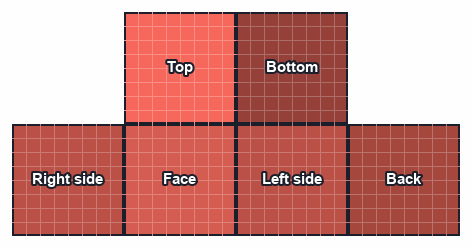
Every box follows the same pattern, only with other sizes. The body is 8 wide, 12 tall and 4 deep; the arms and legs are 4 wide (3 for slim arms), 12 tall and 4 deep. On the top face the front edge is the bottom row; on the underside it is also the bottom row, which surprises many people drawing shoes.
The whole texture
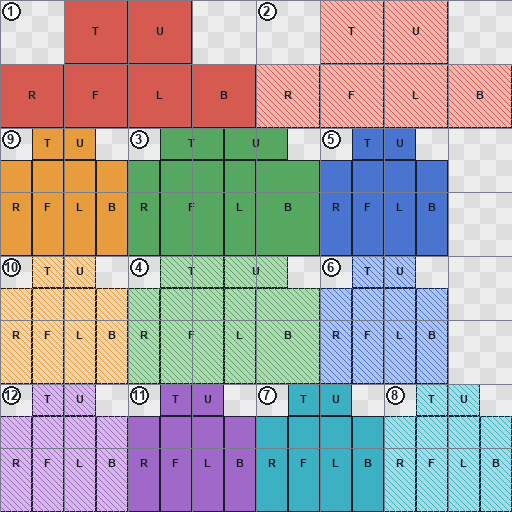
| # | Box | Layer | Area on the texture | Front face |
|---|---|---|---|---|
| 1 | Head | base | x 0 to 31, y 0 to 15 | x 8 to 15, y 8 to 15 |
| 2 | Hat | outer | x 32 to 63, y 0 to 15 | x 40 to 47, y 8 to 15 |
| 3 | Body | base | x 16 to 39, y 16 to 31 | x 20 to 27, y 20 to 31 |
| 4 | Jacket | outer | x 16 to 39, y 32 to 47 | x 20 to 27, y 36 to 47 |
| 5 | Right arm | base | x 40 to 55, y 16 to 31 | x 44 to 47, y 20 to 31 |
| 6 | Right sleeve | outer | x 40 to 55, y 32 to 47 | x 44 to 47, y 36 to 47 |
| 7 | Left arm | base | x 32 to 47, y 48 to 63 | x 36 to 39, y 52 to 63 |
| 8 | Left sleeve | outer | x 48 to 63, y 48 to 63 | x 52 to 55, y 52 to 63 |
| 9 | Right leg | base | x 0 to 15, y 16 to 31 | x 4 to 7, y 20 to 31 |
| 10 | Right pants leg | outer | x 0 to 15, y 32 to 47 | x 4 to 7, y 36 to 47 |
| 11 | Left leg | base | x 16 to 31, y 48 to 63 | x 20 to 23, y 52 to 63 |
| 12 | Left pants leg | outer | x 0 to 15, y 48 to 63 | x 4 to 7, y 52 to 63 |
Reading the map
- The upper half holds the head (left) and the hat (right), then the right leg, the body and the right arm.
- The rows from 32 to 47 hold the outer layer of those same parts: right pants leg, jacket, right sleeve.
- The bottom quarter holds the left leg and left arm with their outer layers. These were added when the format grew from 64 x 32 to 64 x 64, so the left side could differ from the right.
- The checkerboard areas are not used by the model. Leave them transparent.
The old 64 x 32 format
Older skins are 64 x 32: only the top half of the texture. They have one arm and one leg, which the game mirrors for the other side, and the only outer layer is the hat. They still work, but a 64 x 64 skin is the standard today, and Microsoft's skin pack reference recommends it.
HD skins
A 128 x 128 skin uses exactly the same layout with every area doubled: each pixel of the map becomes a square of 2 x 2. The model's shape does not change, only the detail. See HD skins for where they work.
Check your drawing with the test card
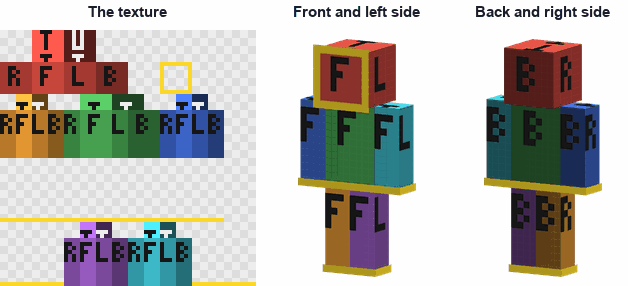
Our orientation test card gives every body part its own color and every face a letter: F for front, B back, R and L the character's right and left, T top and U underside, with arrows on the top and underside pointing to the front. The outer layer has a frame on the hat and a cuff at the end of every limb. Wear it, look from each side, and every letter should read the right way round; it is a quick way to check a skin editor, a viewer or your own understanding of the layout. Download it from the gallery, in Classic and Slim.
Make a skin now, in your browser: five guided photos with the camera, or photos already taken. Nothing is uploaded. The Scan2Skin 3D app for iPhone and Android adds scan yourself, HD skins and Pro.
Make a skin About the phone appSources
- Skin Pack JSON Formatting and Localization Reference, Microsoft Learn. Read October 4, 2026; last updated 2025-08-12: the standard and slim geometries; 64 x 64 recommended, 64 x 32 legacy.
- What is a Minecraft Skin?, minecraft.net. Read October 4, 2026; published 2023-06-05: the Skins tab, the classic (4-pixel arms) and slim (3-pixel arms) models.