The outer skin layer: hat, jacket, sleeves and pants
What the second skin layer is for, where the hat, jacket, sleeves and pants legs sit, how transparency works, and how players can hide each part.
What does the outer layer mean in Minecraft?
The outer layer is the second layer of a skin: slightly larger boxes around the head, body, arms and legs, painted in the same skin file. It holds what should stand out a little from the body, such as a hat, a jacket, sleeves or hair, and in Java Edition each player can hide its parts.
Every 64 x 64 skin has two layers. The base layer is painted directly on the six boxes of the model. The outer layer is painted on six slightly larger boxes around them: half a pixel bigger on every side for the head, a quarter of a pixel for the body, arms and legs. It floats just above the base, which makes it perfect for anything that should stand out a little.
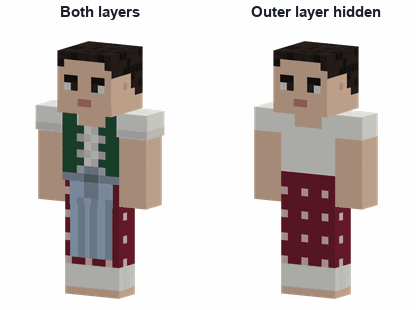
The parts of the outer layer
| Part | Covers | Good for |
|---|---|---|
| Hat | The head | Hats and caps, hair volume, hoods, glasses, headphones, head coverings |
| Jacket | The body | Jackets, coats, vests, aprons, a backpack's straps, long hair down the back |
| Left and right sleeve | The arms | Jacket sleeves, cuffs, gloves, bracelets |
| Left and right pants leg | The legs | Boots, cuffs, a long coat's hem, skirts that flare |
Where each part sits on the texture is in the skin layout guide: the hat beside the head at the top, the jacket and the right sleeve and pants leg in rows 32 to 47, the left ones at the bottom.
Transparency
- The outer layer is transparent wherever you leave it empty. A skin with no outer layer at all is fine.
- Keep the base layer fully colored. Transparent pixels there do not show as see-through, so a hole in the base layer turns into a solid patch.
- Use fully transparent or fully opaque pixels. Half-transparent pixels are not shown the same way everywhere, so a soft edge drawn with them can look different from one device to another.
- Do not cover the whole hat area with one opaque color unless you mean it: it hides the face completely.
Hiding parts of the outer layer
In Java Edition each player can hide each outer part for their own skin, in the game's Options under Skin Customization: Jacket, Left Sleeve, Right Sleeve, Left Pants Leg, Right Pants Leg and Hat (and Cape). Bedrock Edition has no such switches for imported skins, which is why a skin pack can carry the same skin twice, with and without its outer parts.
Two-layer skins: a jacket that comes off
Because the outer layer can be hidden, it can hold a whole second outfit. Paint the shirt on the base layer and only the jacket on the outer layer, and a player can take the jacket off in the game. Scan2Skin 3D makes such a skin from two rounds of photos, jacket off and jacket on (see the photo tips), and the downloads include versions without the jacket for Bedrock. A hat worn only with the jacket goes on the hat layer too.
Common mistakes
- Painting the jacket on both layers: hiding the outer layer then still shows a jacket.
- Leaving the base layer empty under the outer layer: hiding it then shows holes.
- A hat layer with stray pixels: a single forgotten pixel floats half a pixel above the head.
- Forgetting the inside of sleeves and the underside of the hat: they show when the player moves or looks up.
Make a skin now, in your browser: five guided photos with the camera, or photos already taken. Nothing is uploaded. The Scan2Skin 3D app for iPhone and Android adds scan yourself, HD skins and Pro.
Make a skin About the phone appSources
- Make a Custom Skin in Minecraft: Java Edition, Minecraft Help Center. Read October 4, 2026; the article was last edited 2026-01-30: the Launcher's Skins tab, the profile's Change Your Skin page, Classic, Wide and Slim, slim arms from version 1.8.
- Skin Pack JSON Formatting and Localization Reference, Microsoft Learn. Read October 4, 2026; last updated 2025-08-12: the standard and slim geometries; 64 x 64 recommended, 64 x 32 legacy.